Plugin Activation Guide
Follow these instructions to activate your Épica Audio plugin after your trial period or when using a standard (purchased) license.
Activating After Your Trial Period
If you've been using the trial version and have now purchased a license, here's how to activate:
- 1Re-download the plugin from My ProductsAfter purchase, you need to download the standard (full) version of the plugin from your My Products page.MacOS: Run the standard version installer—it will override the trial on your computer and keep your sessions intact.Windows: Installation on Windows is manual. You must override the trial plugin by copying the new .vst3 and .aax files to the same locations where the trial was installed (see our Installation Guide). On some Windows computers, you may need to give open permissions to
C:\ProgramData\Epica Audioand all its subfolders manually after entering the license the first time. Otherwise, the plugin may ask for your license again every time you open it. - 2Enter your license key in the pluginOpen your DAW, load the plugin, and when the license prompt appears, paste or type your license key from the email.
Activating a Standard (Purchased) License
If you've purchased a license directly, follow these steps to activate your plugin:
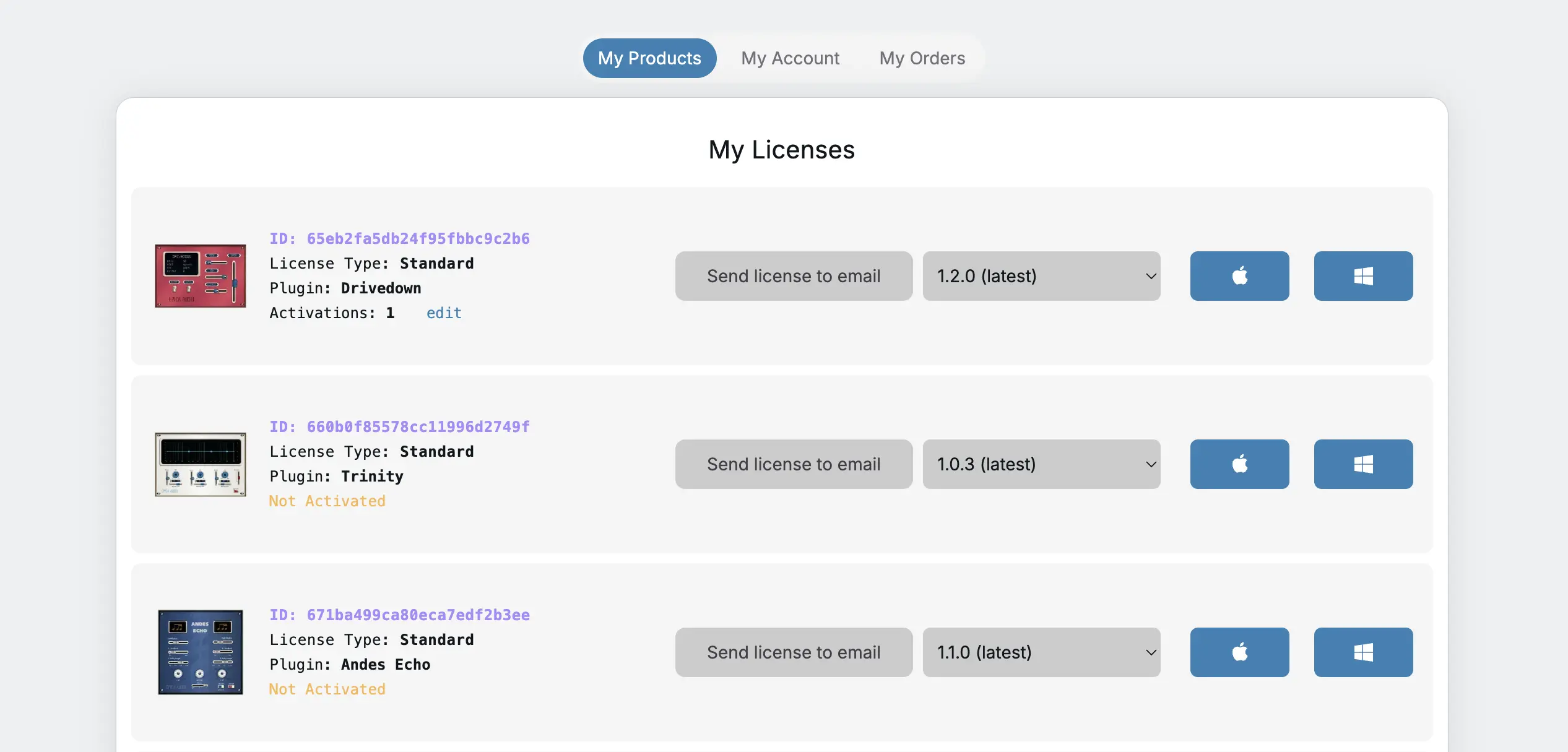
Step 1: Get Your License Key
Your license key was sent to the email address used at checkout. It will look something like this:
-----BEGIN PUBLIC KEY-----
MIICIjANBgkqhkiG9w0BAQEFAAOCAg8AMIICCgKCAgEA1y5mj1BdeWnFBmDT6rzB
HZFqsbRxodxU5m8O4ERJCSQgjsi2kH6SMTKwCv/sO+mFcM90SJVnOHTDauM4NobK
uoan+0Hi2zJJeT1ZDCL3DeXVCnGvAid4vpOi84pq0uqPEniJEVs8IAdYPuCJ6kIb
vgLVo7P9Pa8X9DRNpk0SEZ11J02OR7h2JINluRy3BID9vyoAWJI1kRHnJpgRmUGI
/ZMdPAKHBKj1KgGwvdjfttb0xnyoH2dhdCBzh/UzC/gGvOrObi2Ll0SGHszEWp5w
GQXhHpFIyvs+wKr6TlvEAnPzgGsCkle/L2IavBkBBtUealL0lW4K7N03ZBmTwBop
Au213GUMcFlVT7e/GRLZbhSHTof6s8hQb9EQpJZU7/hr/6qHN/z3ArXxtAhe51ww
QDQ5FthTSkM0Uf/S+6ONtzpIItsXZfi8H3LhpkaHC8J9o0mrqxNpStz5EHk91gmz
8Rl85diwQckn/IafN/xKgyi6X4Eo2uZKoyLjYM4T/SsK9N4xJP20fSpNXsbJ/B53
VO22kMeS8AB3bAs34CJuIQrFB+nH+ly8gZivg5I+AcAQh9CPAOwW6AyM3JCqrUdx
ukxy1fW8G/6svLo0+TU8NaJlLhuBrkyWA91xIKOGsX7qmG1BV1AAQ6Xq7/UgK87m
MaLySO5h1Xb7O3dn/zNOdZECAwEAAQ==
-----END PUBLIC KEY-----
You can copy the entire key—including any line breaks—and paste it into the plugin.
Can't find your license key? Log in to your profile to view your licenses and request a new license key email.
Step 2: Open the Plugin in Your DAW
- Install the plugin if you haven't already (see our Installation Guide)
- Open your DAW (Digital Audio Workstation) and create or open a project
- Load the Épica Audio plugin on a track
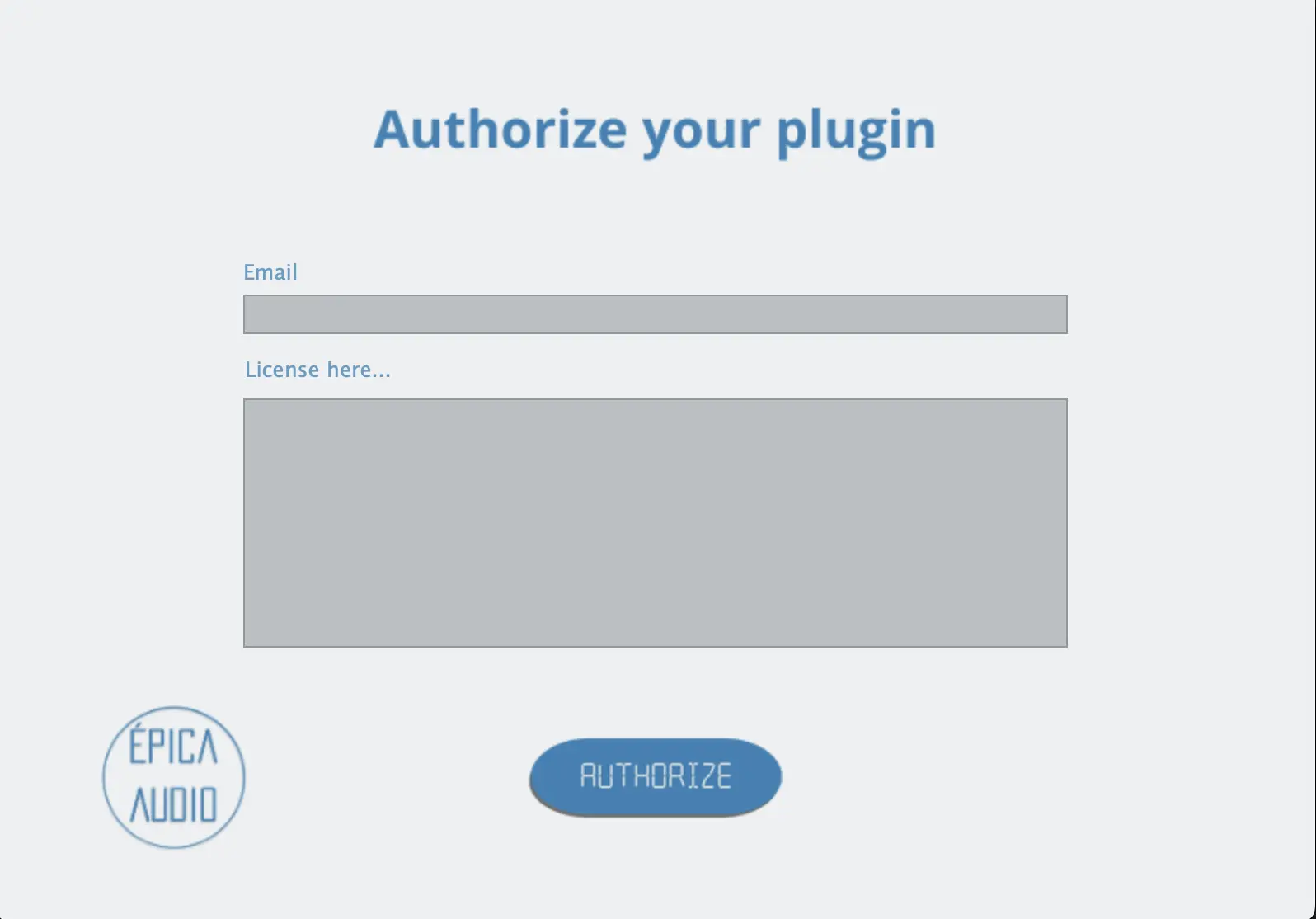
- The plugin will display a license activation prompt
Step 3: Enter Your Email and License Key
- Enter the same email you used for your purchase into the email field.This must match exactly with the email that received your license key.
- Paste or type your license key from your email into the activation field.You can copy the full key from your email—extra spaces or line breaks are automatically handled.
- Click ActivateThe plugin will check your email and license online. An internet connection is required the first time you activate.
Important Notes
- Multiple computers: Each license allows activation on up to 3 devices. To activate on a new computer when you've reached the limit, deactivate the plugin on an old computer first from your profile.
- Internet required: The first activation needs an internet connection. After that, the license is stored locally and the plugin works offline.
- Windows users: Installation on Windows is manual (see our Installation Guide). You may need to give open permissions to
C:\ProgramData\Epica Audioand all its subfolders manually—otherwise the plugin may ask for your license again every time you open it. - Need help? Contact us at support@epicaaudio.com for activation support.